





Many Windows 8 devices have built-in cameras. You can activate this camera with a native Windows 8 app.
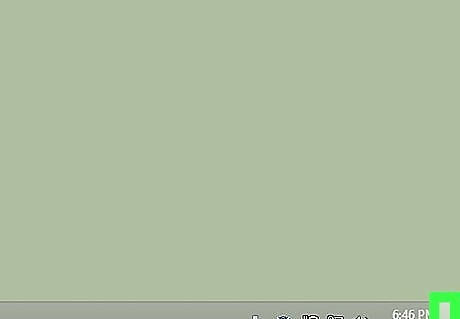
Move your cursor all the way to the bottom right corner of windows to reveal the side Charms bar.
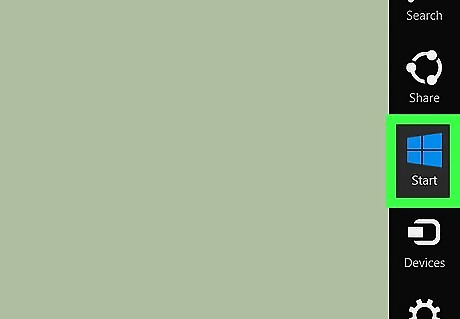
Select "Start" from the options there to go to the Start menu.
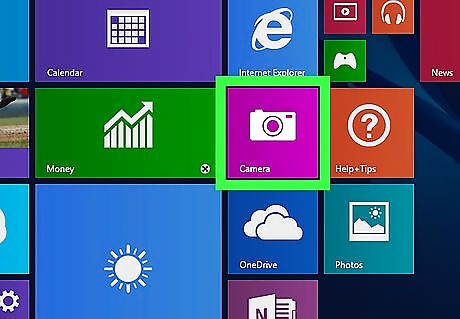
Click on the "Camera" app in the purple box on the right of the Start menu.
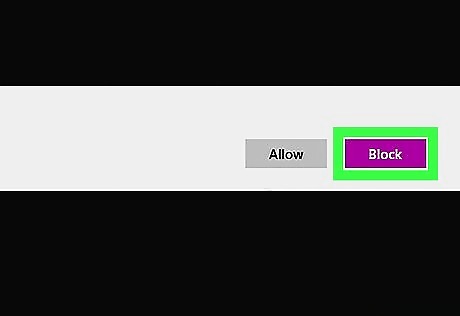
Click "Allow" when the permission screen appears to allow the app to access your camera and microphone.
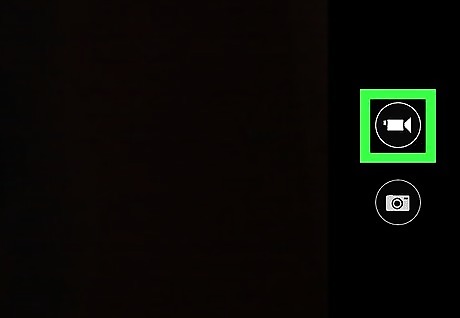
Click on the "Video" option in the bottom right corner of the camera screen once it activates if you want to switch modes.








Comments
0 comment